By Alex Host · Founder of Top Care Cleaning · Updated 2026-05-22
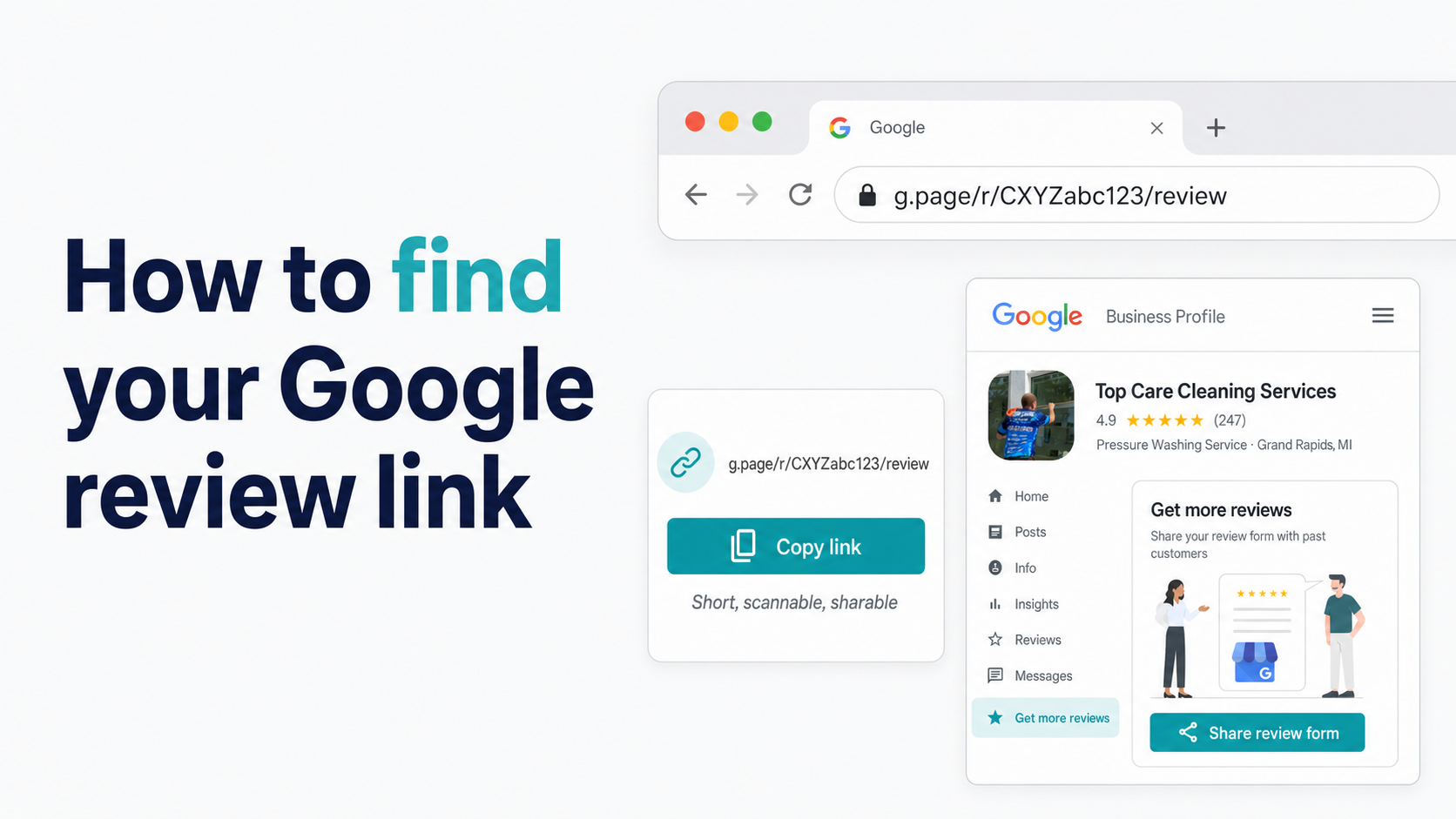
Your Google review link already exists — Google generated it when your business was verified. The only problem is knowing where to look. This guide covers 4 methods to retrieve it, ordered from fastest to most technical.
Or skip the manual steps entirely: paste your business name into the Hosted Reviews link generator and get all three link formats — no account required.
Method 1 — From your Google Business Profile (fastest, 30 seconds)
This is the method I use for Top Care Cleaning whenever I need to pull the link fresh. It's the most direct path to the g.page short link — the cleanest format for SMS and email use.
1. Sign in to business.google.com with the Google account that manages your GBP.
2. If you manage more than one location, select the correct location from the dashboard. Multi-location businesses: verify you're on the right location before copying the link.
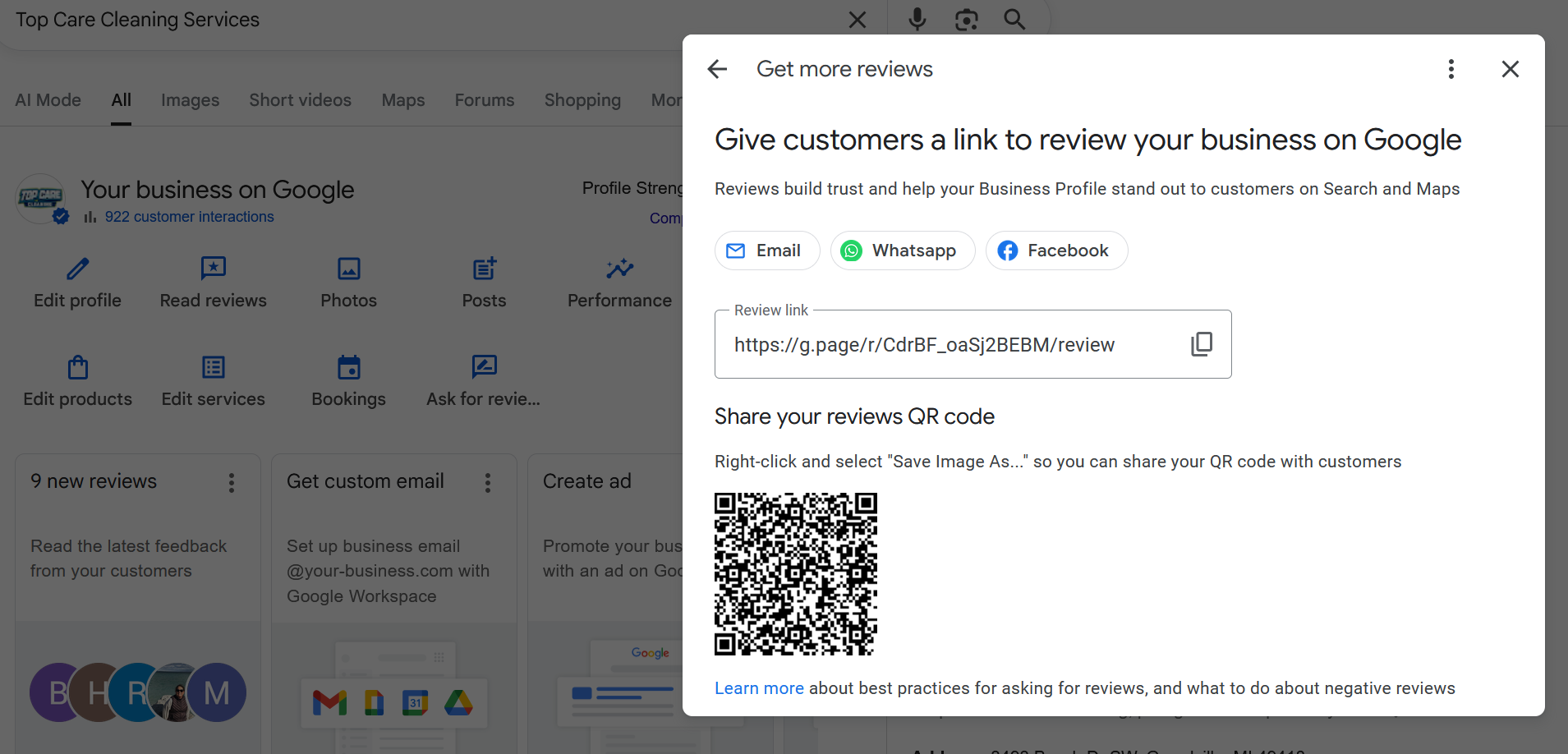
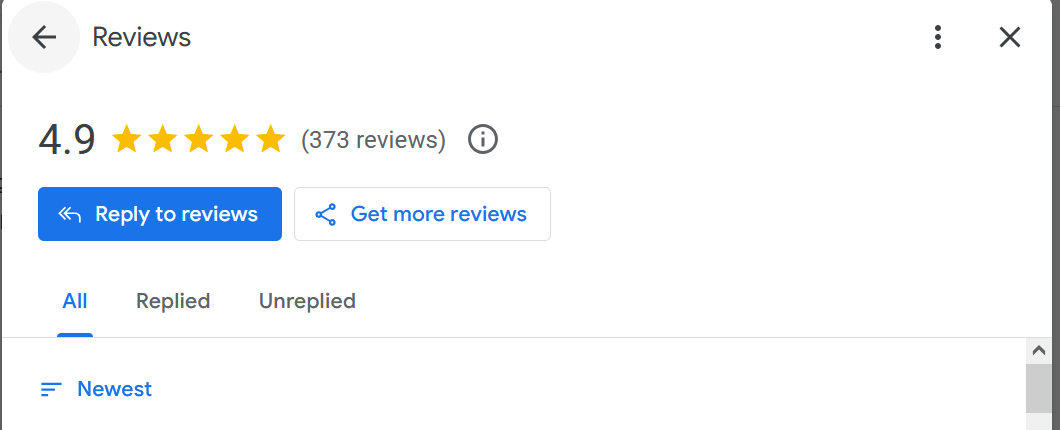
3. On the home screen, look for the card labeled "Get more reviews" — it appears near the top, in the main dashboard tiles.
4. Click "Share review form."
5. A dialog box opens showing your g.page short link. Click the copy button.
That's it. The g.page link format looks like https://g.page/r/CkIBAAAAAAAAAAAAEAE/review. It's 40–50 characters, clean enough to paste into a text message, and it drops customers directly on the five-star rating form.
One thing to verify before distributing this link: paste it into an incognito browser window and confirm it opens the review form for your specific location. The business name should appear at the top of the form. If it shows the wrong location, you grabbed the link from the wrong account view.
What to do if you can't find the "Get more reviews" card: Google redesigns the GBP dashboard periodically. If the card isn't visible, look in the left navigation for "Ask for reviews" or use the GBP search bar and type "review link." Google's Business Profile Help documents the current location of this feature.
Method 2 — From Google Maps on desktop
Use this method if you don't have access to the GBP dashboard — for example, you're helping a client or using a shared computer.
1. Open maps.google.com in a browser.
2. Type your business name and city in the search bar. Hit enter.
3. Click your business listing in the search results panel on the left.
4. When the business card expands, click the three-dot menu icon (labeled "More" in some views).
5. Select "Share."
6. In the share dialog, copy the link shown.
Google Maps shares the g.page short link through this method. The process takes about 60 seconds once you're at the Maps page.
One quirk: the link in the share dialog from Maps is your general business listing link, which may or may not include the /review suffix. Always test the link in an incognito tab before using it for review requests to confirm it opens the review form directly rather than the listing page.
Method 3 — From Google Maps on mobile
This is the fastest method if you're already on your phone and don't want to open a browser on desktop.
1. Open the Google Maps app on iOS or Android.
2. Tap the search bar and type your business name.
3. Tap your business listing in the results.
4. On the business listing screen, scroll down to find the Share button — the arrow-out-of-box icon on iOS, or the standard share icon on Android.
5. Tap Share. The share sheet opens with your link.
6. Copy the link or share it directly from the sheet.
Important note about mobile links: On mobile, the link in the share sheet is typically your business listing link, not the direct write-review link. The listing link format (https://maps.app.goo.gl/...) takes the customer to your listing page rather than the review form. From the listing, they need to tap "Write a Review."
To get the direct-to-form link on mobile, open your GBP account through the Google Business Profile app or mobile browser at business.google.com and use Method 1.
Method 4 — From your Place ID (developer method)
Your Place ID is an alphanumeric string (like ChIJN1t_tDeuEmsRUsoyG83frY4) that uniquely identifies your business in Google's Places database. With it, you can construct the direct write-review URL manually:
https://search.google.com/local/writereview?placeid=YOUR_PLACE_ID
Replace YOUR_PLACE_ID with the alphanumeric string from Google's Place ID Finder.
This method is the most stable for developer and programmatic use. Unlike the g.page link, which depends on Google's redirect infrastructure, the PlaceID URL is constructed directly from your Place ID. If Google ever changes how g.page redirects work, the PlaceID URL remains unaffected.
To find your Place ID: use Google's Place ID Finder tool or follow the step-by-step guide in the Place ID deep-dive article (link added once the build cohort publishes).
Once you have the Place ID, paste it into the URL template above. Test the resulting link in an incognito tab before using it.
You can also paste your Place ID directly into the Hosted Reviews generator — it accepts both business name and Place ID as inputs and returns all three link formats simultaneously.
Which method should you use?
| Situation | Best method |
|---|---|
| You manage your own GBP and need the link now | Method 1 (GBP dashboard) |
| You don't have GBP access, using desktop | Method 2 (Maps desktop) |
| You're on mobile and need it fast | Method 3 (Maps mobile) + verify it links to form |
| You need the long-format URL for developer/API use | Method 4 (Place ID) |
| You want all 3 link formats at once | Hosted Reviews generator |
| Multi-location — need separate links for each location | Method 1 per location, or Method 4 per Place ID |
| Your current link stopped working | Method 1 to regenerate, or Method 4 for stability |
Why it matters which link format you use
Not all three link formats convert equally. Here's the quick version:
g.page short link (from GBP dashboard): Links directly to the review form. 40–50 characters. Best for SMS, email, QR codes, and website buttons.
PlaceID write-review URL: Links directly to the review form. 80–120 characters. Best for developer/API use, multi-location per-location link management, and any context where link stability matters more than brevity.
Maps deep link (maps.google.com/?cid=...): Links to your listing page, not the form. The customer needs an extra tap to get to the review form. Lower conversion in SMS because of the extra step and higher character count.
At Top Care, our sends use the g.page short link exclusively — a formal A/B test comparing it against the Maps deep link is on the roadmap. A format comparison guide is coming in the build cohort.
What to do after you find your link
Finding the link is the first step. Here's what comes next:
Test it. Paste it into an incognito window and confirm it opens the review form for the right location.
Shorten or customize it. If you want a branded URL like yourdomain.com/review, see the short link guide and the custom link guide (both coming in the build cohort).
Understand the formats. If you're not sure whether to use the Maps link or the GBP link, the Maps vs GBP link comparison (coming in the build cohort) covers the conversion difference with real data.
Share it. The full channel guide with SMS templates, email templates, timing data, and Top Care's real conversion data (21% review conversion rate from 70 SMS sends, 40% tap-yes rate) is in How to Share Your Google Review Link via SMS, Email, and QR Code.
Turn it into a QR code. For printed materials — door hangers, receipts, business cards, vehicle decals — see the QR code guide (coming in the build cohort).
Put it on your website. The HTML snippets and platform instructions are in the website embed guide (coming in the build cohort).
Track clicks by channel. The UTM setup guide and four-method tracking comparison is in the click tracking guide (coming in the expansion cohort).
The full overview of every step in this process is in the Google Review Link Toolkit.
Common problems and quick fixes
Problem: The GBP dashboard doesn't show a "Get more reviews" card. Fix: Use Google Business Profile Help to find the current navigation path. Google periodically redesigns the dashboard. The feature always exists — the location just shifts. Alternative: use Method 2 or the Hosted Reviews generator.
Problem: The link I copied opens a different business's review form. Fix: You likely searched a common business name and selected the wrong result in the autocomplete. Re-search with more specific information (business name + city + street), or look up your Place ID and use Method 4 to construct the link manually.
Problem: The g.page link stopped working after I set it up in my email signature months ago. Fix: Your GBP listing may have been updated, suspended, or merged with another listing. Log into GBP, check the listing status, and if it's active, regenerate the link from the dashboard. Update your email signature and any SMS templates with the new link. Set a quarterly reminder to test your live review link.
Problem: My review link asks customers to sign in to Google before they can submit the review. Fix: This is expected behavior — Google requires a Google account to post a review. You can't change it. What you can do is note in your review request message: "You'll need a Google account to submit — most Android phones and Gmail users are already signed in." It reduces friction from the surprise factor.
Want to send this link automatically over SMS after every job?
I built Hosted Reviews because I was sick of manually texting review requests after every Top Care job. Start a 14-day trial — no card required.
About the author
Alex Host runs Top Care Cleaning, a residential cleaning company in Grand Rapids, Michigan, and built Hosted Reviews after years of duct-taping review-request systems together. He writes about review collection, local SEO, and operating service businesses.