By Alex Host · Founder of Top Care Cleaning · Updated 2026-07-03
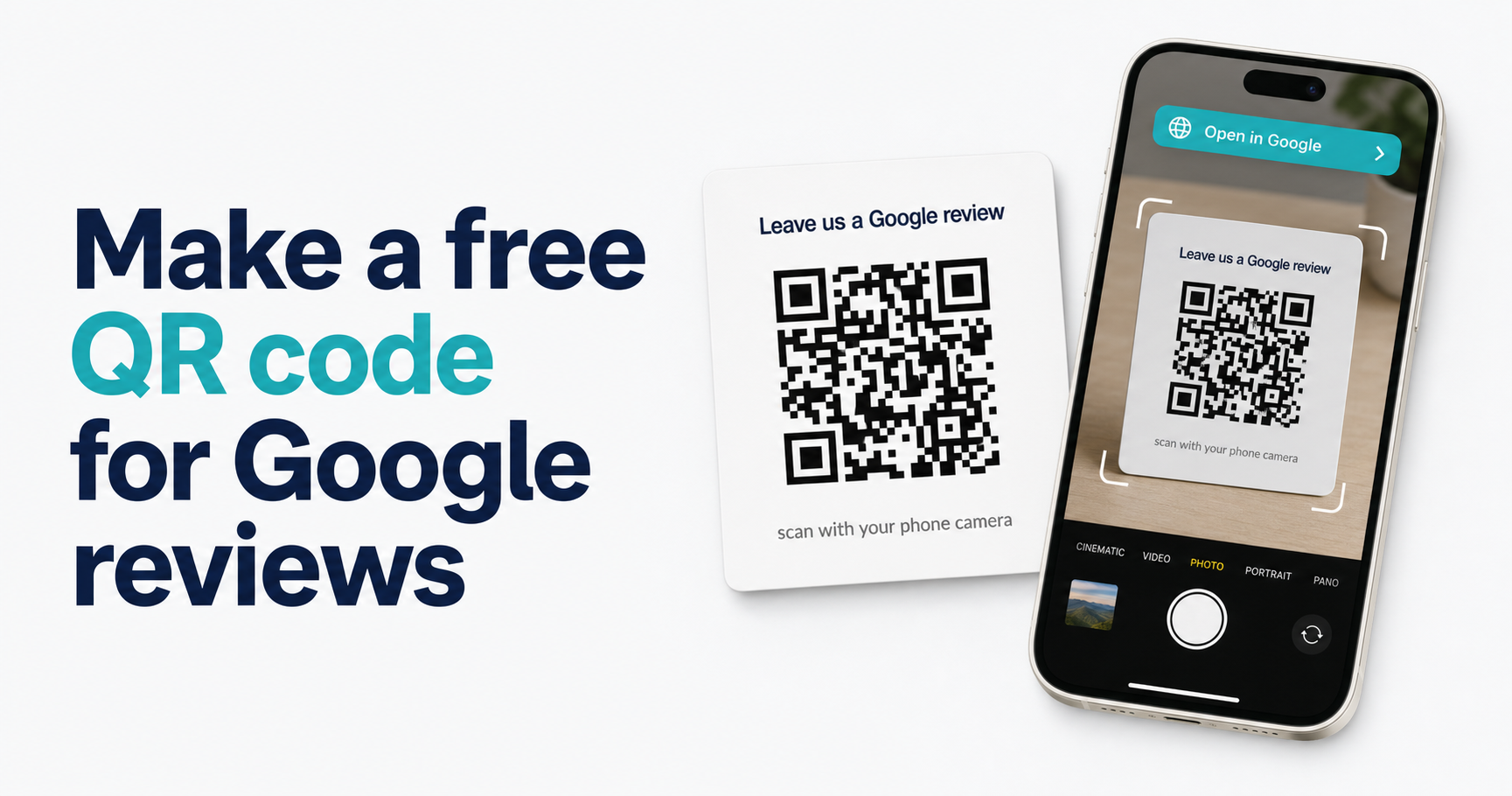
Two methods, both free, no email gate on either one. Skip ahead — generate your QR code instantly here.
Most QR code generators either require you to sign up for a free account or gate the download behind an email submission. This guide covers two tools that don't. It also covers print specs, placement strategy, and why QR codes are fully compliant with Google's review policy.
For context on the full review request workflow, see How to Share Your Google Review Link via SMS, Email, and QR Code and the Google Review Link Toolkit.
Method 1 — Use the Hosted Reviews QR generator (30 seconds, no signup)
This is the fastest option and requires only your business name.
Step 1: Go to the generator
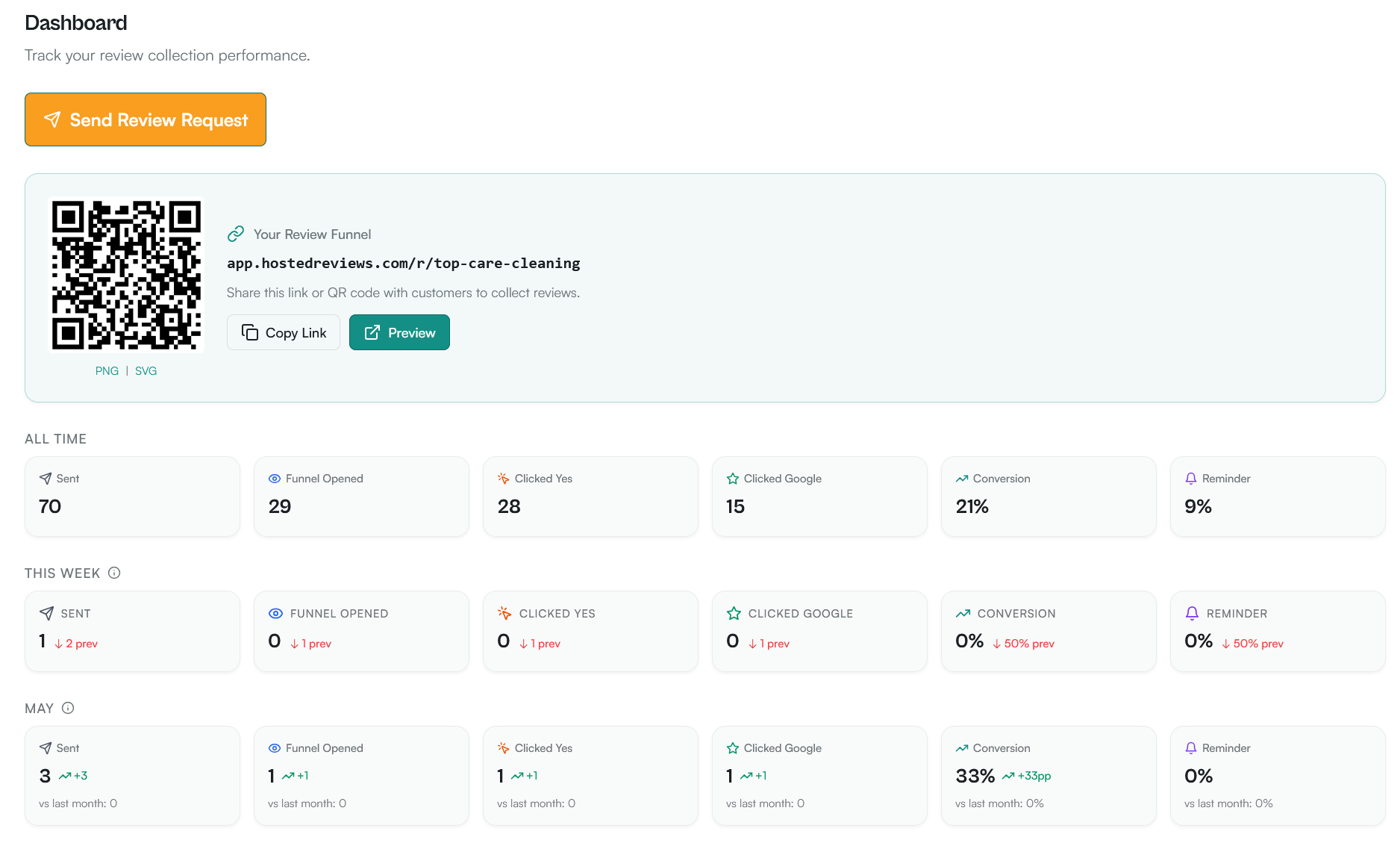
Navigate to the Hosted Reviews Google review link generator. No account, no email, no signup required.
Step 2: Enter your business name
Type your business name in the search field. Select the correct location from the autocomplete results. If you manage multiple locations, confirm the correct one is selected — each location has its own review link and should have its own QR code.
Step 3: Generate the QR code
Once the tool returns your review links, click "Generate QR Code." The tool creates a QR code from your g.page short link — the cleanest, shortest format for QR use. Shorter URLs produce smaller, denser-free QR codes that scan more reliably at small print sizes.
Step 4: Download the file
Download the PNG or SVG file. Use PNG for digital use and standard printing on a home or office printer. Use SVG for large-format printing — vehicle decals, window clings, yard signs, oversized door hangers — because SVG scales without losing quality.
Step 5: Test the QR code before printing
This step is non-optional. Before sending anything to a professional printer or distributing physical materials, scan the downloaded QR code with your phone camera. Confirm it opens the Google review form for your specific business location. Check on both iOS and Android if you have access to both.
Method 2 — Build it manually with a free QR generator
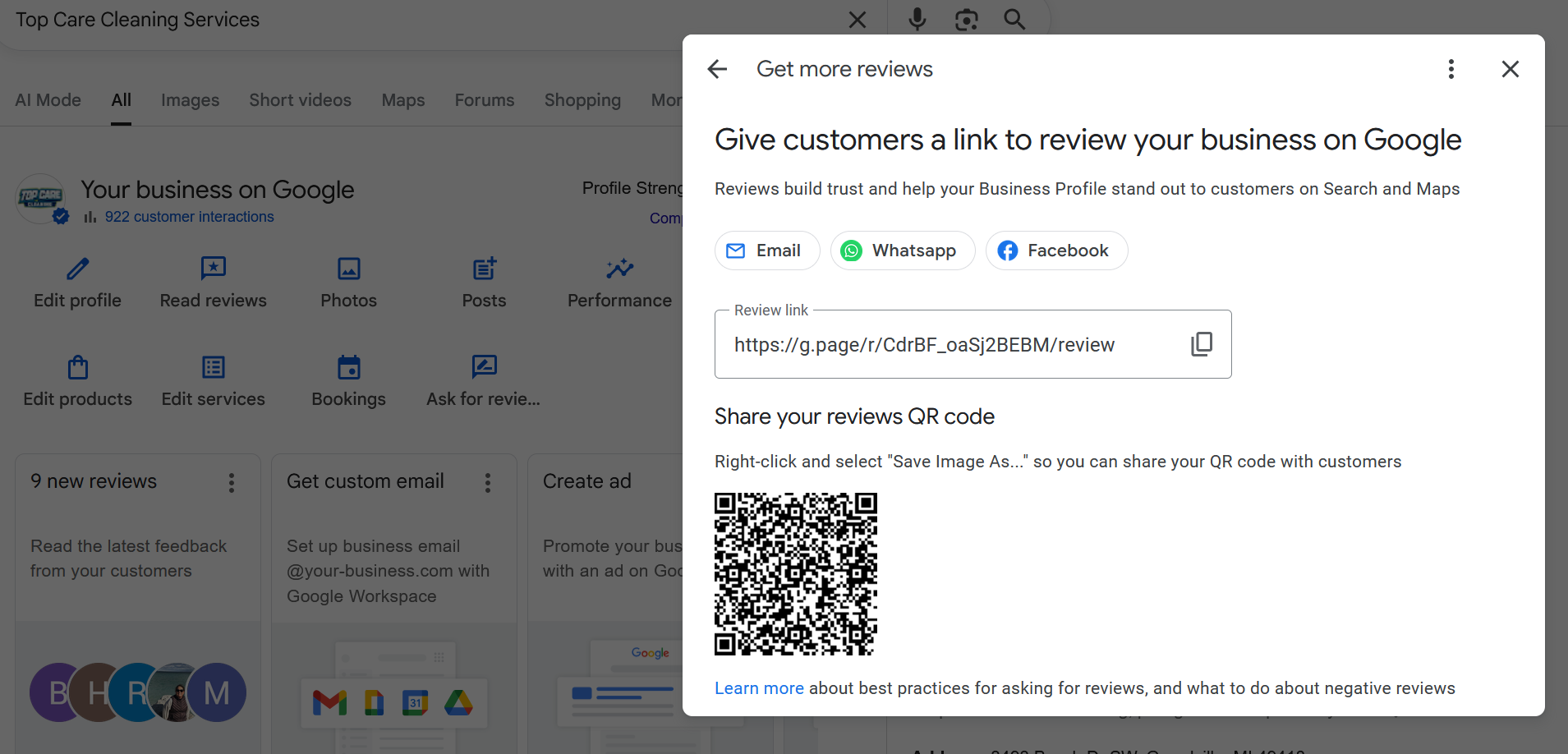
If you already have your g.page short link and want to use a standalone tool, here are three honest options without email gates on the basic download:
QR Code Generator (qr-code-generator.com): Free tier available, no email required for a basic black-and-white PNG download. Supports color customization and logo overlay on the free tier. Straightforward interface.
QRCode Monkey (qrcodemonkey.com): Free for basic use, no email required. Good customization options including colors, logo embed, and rounded modules. Exports PNG and SVG. The SVG export is particularly useful for print use.
Canva QR code generator (canva.com): Free with a Canva account (Canva itself is free). The advantage over standalone generators: you can drop the QR code directly into a door hanger, business card, or receipt design within the same tool. If you're designing your printed materials in Canva anyway, this saves the import step.
What to check before using any QR generator:
- Verify the generator creates a QR code that points directly to your g.page link — not through their domain as a redirect.
- Download and scan the code before putting it on any printed material.
- Don't use any generator that adds their brand watermark without a way to remove it.
- Avoid generators that claim "dynamic QR codes" on a free plan — dynamic QR codes route through their servers and can break if the service shuts down or changes their pricing.
What size should the QR code be?
QR codes need a minimum quiet zone (white border) of at least 4 modules wide around all edges, and a minimum physical size that allows phone cameras to focus at typical scanning distances. Below are the practical minimum and recommended sizes for each print material:
| Material | Minimum QR code size | Recommended QR code size | Typical scanning distance |
|---|---|---|---|
| Business card (3.5" × 2") | 0.8" × 0.8" | 1" × 1" | 6–8 inches |
| Receipt or invoice (thermal print) | 1" × 1" | 1.25" × 1.25" | 8–12 inches |
| Door hanger (3.5" × 8.5") | 1.5" × 1.5" | 2" × 2" | 12–18 inches |
| Table tent / leave-behind card | 1.5" × 1.5" | 2" × 2" | 12–18 inches |
| Vehicle decal (side panel) | 3" × 3" | 4" × 4" | 5–10 feet |
| Window cling (storefront) | 3" × 3" | 4" × 4" | 3–8 feet |
| Yard sign (standard 18" × 24") | 4" × 4" | 6" × 6" | 5–15 feet |
Where to put the QR code (5 places that work)
1. Door hanger, left at the job.
Top Care's primary QR distribution channel. Every cleaning job gets a door hanger left on the front door. The QR code is on the back, with the label "Enjoyed your clean? Scan to leave a Google review." The hanger is visible immediately when the customer arrives home — ideally within hours of the job completion.
The door hanger is the highest-impact offline review request in the entire silo because it captures customers at the moment of maximum satisfaction (they just came home to a clean house) and requires zero follow-up action on your part.
2. Job receipt or invoice.
If you print or email an invoice after each job, add the QR code in the footer with a one-line ask. Customers who open their invoices and are satisfied with the work have a natural moment to act on the request. This placement also works for mailed invoices.
3. Vehicle decal or magnetic sign.
If your crew vehicles are branded, a QR code on the vehicle is visible to neighbors, passersby, and anyone in the vicinity of the job site. Top Care added a QR code decal to our cargo van after the first batch of door hanger distribution. [Top Care data needed: vehicle decal QR scan count over [time period]].
4. Business card or leave-behind card.
A QR code on the back of a business card turns a generic card into a review ask. At end-of-job, handing the card to the customer or leaving it on the counter with a verbal mention ("if you're happy with the work, that code goes right to our Google review page") adds the personal layer that printed materials alone can't provide.
5. End-of-job leave-behind insert.
For service businesses that leave paperwork with the customer — cleaning checklist, service summary, warranty card, referral card — a small QR code insert added to the packet is a natural fit. The customer reads the job summary and the review ask is in the same envelope.
Top Care's QR distribution results to date:
- Door hangers distributed: [Top Care data needed: total door hangers distributed to date]
- Total QR scans from door hangers: [Top Care data needed: door hanger QR scan count over [time period]]
- Scan rate: [Top Care data needed: door hanger QR scan rate as % of distributed hangers]
- Scans that converted to completed reviews: [Top Care data needed: QR scan-to-review conversion rate]
Scan rate is lower than the SMS review conversion rate of 21%, but the per-hanger cost is a one-time printing expense rather than an ongoing sending cost. At volume, QR codes on printed materials have a lower cost-per-review-acquired than any digital channel.
Does scanning a QR code count as a fake review? (No, here's why)
This question comes up from business owners who've heard that soliciting reviews can violate Google's policy. The short answer is no — QR codes are not fake reviews, and asking customers to leave a review is explicitly permitted.
Per Google's review policy, what's prohibited:
- Posting reviews from accounts that didn't actually experience the business
- Offering compensation (discounts, cash, gifts) in exchange for a positive review
- Selectively distributing review requests only to customers you believe will leave positive reviews
What's explicitly allowed: asking customers to leave a review after a genuine service experience. The QR code is the delivery mechanism. Scanning it means the customer is choosing — actively, voluntarily — to open the review form.
The key compliance practice for physical distribution: put the QR code on materials that all customers receive (door hanger, receipt) rather than selecting specific customers to give it to based on how you think their job went. Consistent, non-selective distribution is the clean practice.
Want to send this link automatically over SMS after every job?
I built Hosted Reviews because I was sick of manually texting review requests after every Top Care job. Start a 14-day trial — no card required.
About the author
Alex Host runs Top Care Cleaning, a residential cleaning company in Grand Rapids, Michigan, and built Hosted Reviews after years of duct-taping review-request systems together. He writes about review collection, local SEO, and operating service businesses.