By Alex Host · Founder of Top Care Cleaning · Updated 2026-05-04
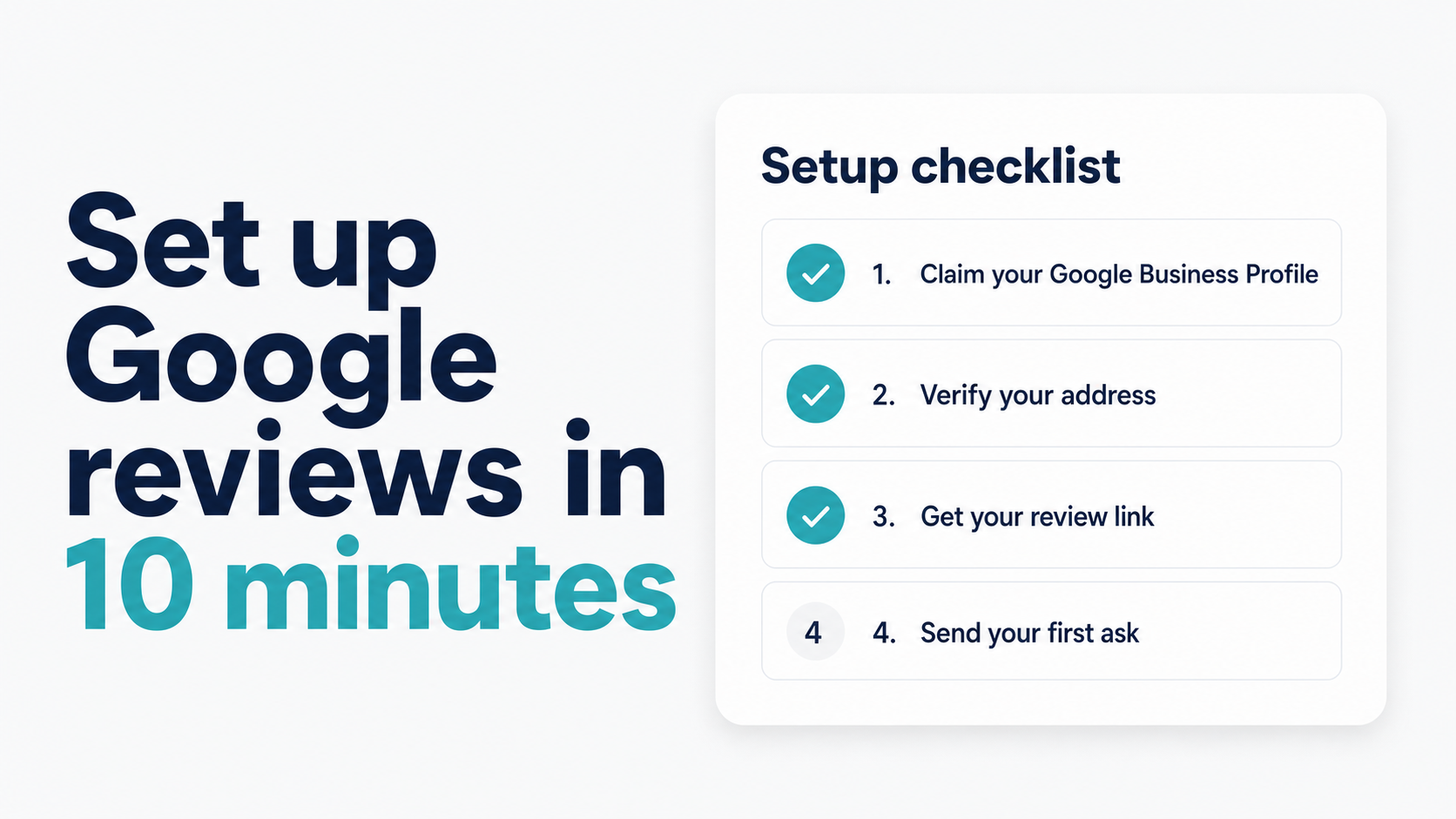
To set up Google reviews for your business, you need a verified Google Business Profile. Once verified, Google automatically creates a review page for your business. The setup steps are: claim your GBP listing, verify your address or phone, then retrieve your review link from the GBP dashboard. The review link is what you send customers — it opens directly to the "Write a review" prompt.
Prerequisites — what you need before you start
Before starting the GBP setup, gather:
- A Google account — a business email address is preferable to a personal Gmail for long-term profile management, but either works for the setup
- Your business address or service area — service businesses (cleaning, landscaping, HVAC, plumbing) can list a service area instead of a physical storefront address; Google displays the service region rather than an exact street address
- Basic business information — business name, phone number, website URL, business category, and hours of operation
The category selection matters for local pack ranking. Choose the most specific category that accurately describes your primary service. For Top Care Cleaning, we use "House Cleaning Service" and "Window Cleaning Service" as categories. The more specific the category, the more relevant your profile is for category-specific searches.
Step 1 — Claim or create your Google Business Profile
Go to business.google.com and sign in with your Google account.
If your business already exists in Google's database: Search for your business name in the search bar. Businesses are sometimes pre-populated by Google from data aggregators. If you see your business listed, click "Claim this business" and follow the ownership verification steps.
If your business doesn't exist yet: Click "Add your business to Google" and enter your business name. Google will walk you through the setup flow.
If someone else claimed your listing: This happens with previously owned businesses or data-import errors. Use the "Request access" button and Google will contact the current owner. If the current owner doesn't respond within 7 days, Google may grant you ownership. For documented legitimate ownership disputes, Google Business Profile support can intervene.
Step 2 — Verify your listing
Google requires verification to confirm you're the legitimate owner of the business at the stated location. The verification options are:
Postcard by mail (most common): Google mails a postcard with a 5-digit verification code to your business address. Arrival typically takes 5–14 days. When it arrives, go to your GBP dashboard and enter the code to verify.
Phone verification: If eligible, Google sends a verification code via phone call or SMS to the number listed for your business. Instant if available — many businesses aren't eligible for this method.
Email verification: Some businesses can verify via email. If this option appears, it's the fastest method.
Video verification: Google has introduced video verification for some businesses — typically those without a physical storefront. You record a short video showing the business location and signage.
Instant verification: If your business website is connected to Google Search Console, instant verification may be available. This is the fastest option when eligible.
When I set up Top Care Cleaning's GBP years ago, verification took about a week via postcard. The newer instant and phone verification options, where available, can cut that to hours. If you're in a time-sensitive situation, try phone and email verification first before defaulting to the postcard option.
While you wait for verification: you can still access the GBP dashboard and set up your profile information, photos, and business description. You just can't receive or respond to reviews until verification is complete.
Step 3 — Get your Google review link
Once your listing is verified, your Google review link is available in the GBP dashboard. The review link is the specific URL that takes customers directly to the "Write a review" screen — not your business listing, not your website, but the review form.
Where to find it in your GBP dashboard:
- Go to business.google.com
- On the dashboard home screen, look for the card labeled "Get more reviews"
- Click "Share review form"
- A dialog box opens with your g.page short link — copy it
The g.page short link format looks like https://g.page/r/CkIBAAAAAAAAAAAAEAE/review. It's clean, 40–50 characters, and the format most suitable for SMS review requests.
The fastest method if you want all three link formats at once: paste your business name into the free tool at /tools/google-review-link and get the long write-review URL, g.page short link, and Place ID URL in 30 seconds. For a step-by-step guide to finding your link in four different ways, see How to Find Your Google Review Link.
Step 4 — Test your review link
Before sending the link to any customer, verify it in an incognito browser window.
- Copy your review link
- Open an incognito/private browser window (Ctrl+Shift+N in Chrome, Command+Shift+N on Mac)
- Paste the link and navigate to it
- Confirm that the Google review form for your specific business name and location opens
If you see "can't find this business" or the form opens for the wrong business, check:
- That your GBP is fully verified (unverified profiles don't have functional review links)
- That you copied the g.page link for the correct location (multi-location businesses sometimes copy the wrong location's link)
- That the business name in the link matches your verified GBP
If the link works correctly in incognito mode, it will work for your customers. Save it in a place where you can access it quickly — your phone's notes app, your CRM, or your job management software.
Step 5 — Build your ask workflow
With the link live and tested, the final step is deciding how it gets to customers.
Minimum viable workflow (manual): Save the review link in your phone. After each completed job, send an SMS to the customer with the link. "Hi [Name], thanks for today — if you were happy with your service, here's a direct link to leave a Google review: [link]."
This works. It requires you to remember to send the text after every job, which is where manual workflows break down. Before I had automation at Top Care, we were sending to maybe 20% of completed jobs — the ones we remembered to text. That's 80% of review opportunities missed.
Automated workflow: With a review request tool like Hosted Reviews, the link is sent automatically when you close out a job. No manual step required. We now send to 100% of completed jobs at Top Care — every customer gets the ask within 2 hours of job completion.
For a step-by-step guide to getting more reviews once your system is live, see How to Get More Google Reviews for Your Local Service Business.
How Top Care Cleaning runs its review setup
Here's what the end-to-end system looks like at Top Care, for a concrete example:
GBP: Verified, fully filled out with categories ("House Cleaning Service," "Window Cleaning Service," "Exterior Cleaning Service"), photos, service descriptions, and FAQ answers. The profile is the front door — we treat it as a marketing asset, not a compliance checkbox.
Review link: The g.page short link is stored in Hosted Reviews and goes out automatically in every post-job SMS. I haven't manually touched the review link in over a year — the system handles distribution.
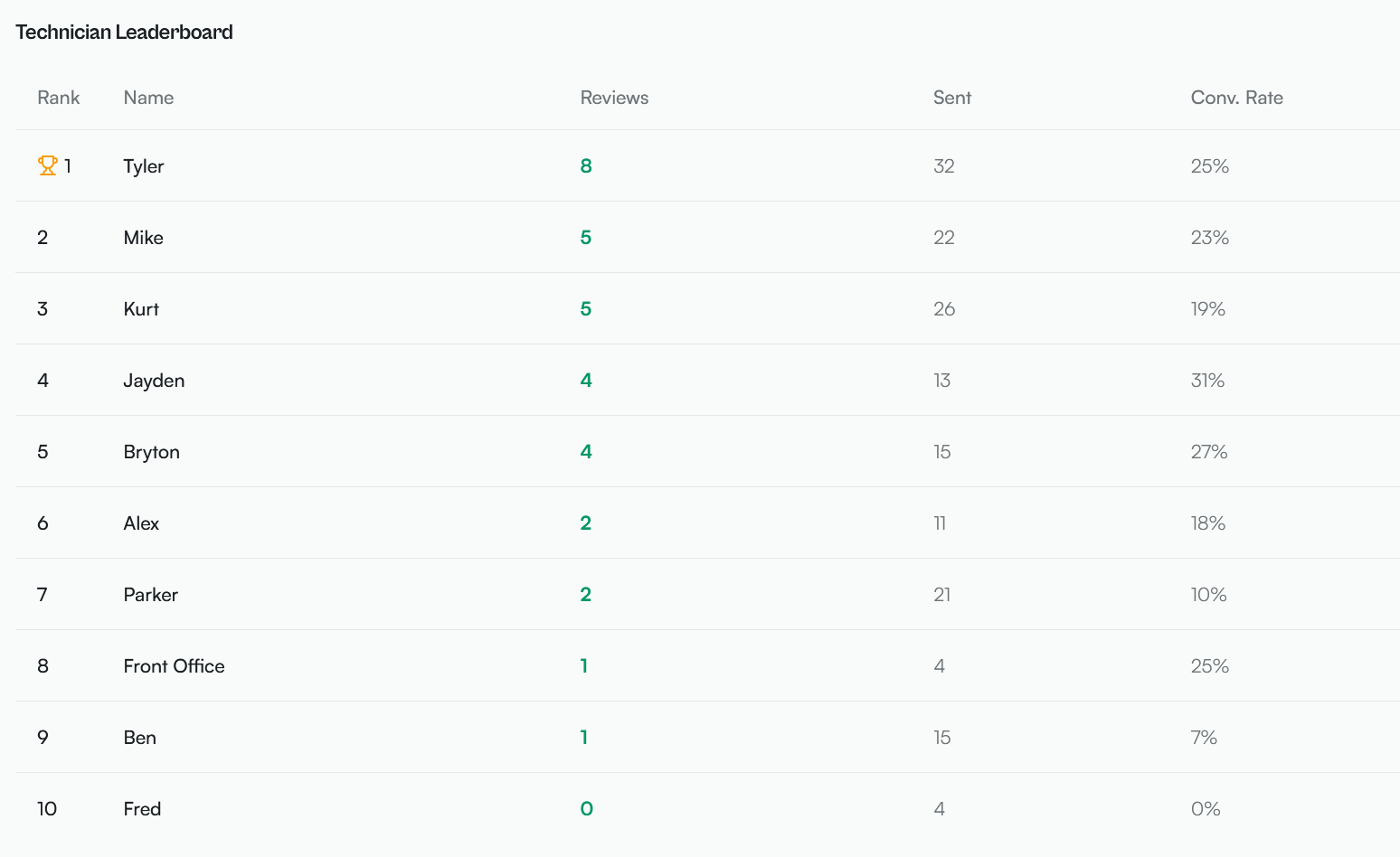
Workflow: Technician completes job → job is marked complete in our scheduling software → Hosted Reviews triggers the SMS within 2 hours → customer receives the ask → 21% of those customers leave a review.
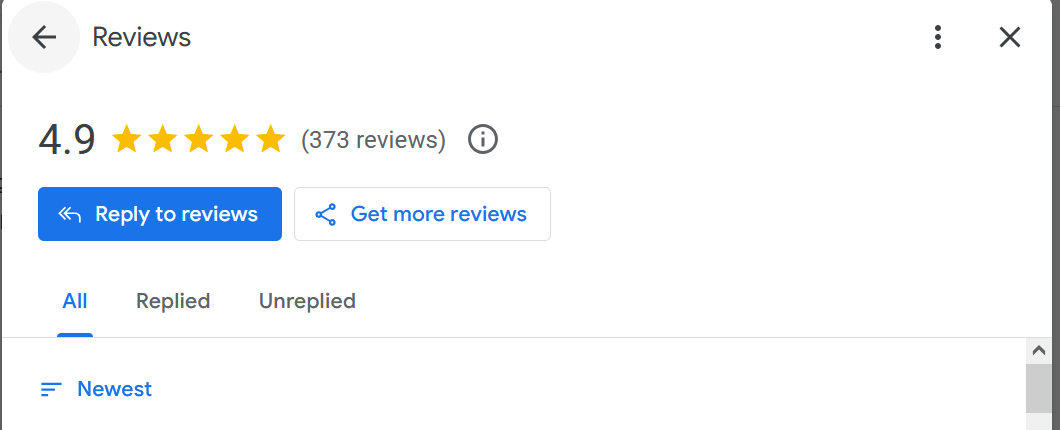
The result: we went from roughly 20 reviews per year (one manual ask per week at best) to 3–5 reviews per week on active weeks. That cadence built the 400-review profile we now hold.
We were collecting reviews slowly and inconsistently before automation — maybe 20 to 30 per year when I remembered to ask manually. After building the automated workflow, we reached 400+ reviews within three years of systematic post-job collection.
Once your review link is live, Hosted Reviews handles the rest — automated SMS after every job. Start a 14-day trial — no card required: app.hostedreviews.com.
Frequently asked questions
How long does it take to get a verified GBP?
Postcard verification: 5–14 days. Phone or email verification (when eligible): hours. Instant verification (when your website is connected to Google Search Console): minutes. Plan for 1–2 weeks if you're using the postcard method, which is the most common.
Can I set up Google reviews without a physical address?
Yes. Service area businesses — cleaning companies, lawn care operators, HVAC companies, plumbers — can set up a GBP with a service area instead of a storefront address. Google shows your service region rather than a specific street address. Your reviews function identically whether your profile has a physical address or a service area.
What happens if my GBP gets suspended?
A suspended GBP means your profile is no longer visible in Google Search and Maps. Common causes: policy violations, suspicious review activity, unverified listing, or address discrepancies. To reinstate, go to Google's Business Profile reinstatement request page and follow the process. Resolution typically takes 1–2 weeks. Preventative: keep your GBP information accurate, verify promptly, and don't violate review policies.
About the author
Alex Host runs Top Care Cleaning, a Grand Rapids cleaning and exterior service with 400+ Google reviews, and built Hosted Reviews to automate what he was doing manually. I run Top Care Cleaning, a Grand Rapids cleaning and exterior service with 400+ Google reviews, and I built Hosted Reviews to automate what I was doing manually. Read more at hostedbrands.com/about and topcarecleaning.com.