By Alex Host · Founder of Hosted Reviews and operator of Top Care Cleaning · Updated 2026-05-22
A 1-star review that sits unanswered for a week looks worse than one that got a thoughtful response in 24 hours. It signals to prospective customers that nobody is watching, that the experience of the reviewer didn't matter enough to warrant a response. The fix isn't writing better responses — it's knowing about the review faster. Here's how to set up real-time alerts so you never miss one, and the system Top Care Cleaning uses to keep response time under four hours.
Cross-platform scope note: This article covers Google review monitoring only. Yelp, Facebook, and BBB monitoring are outside the scope of V1 and will be covered in a later article.
The 24-hour rule — why timing affects perception
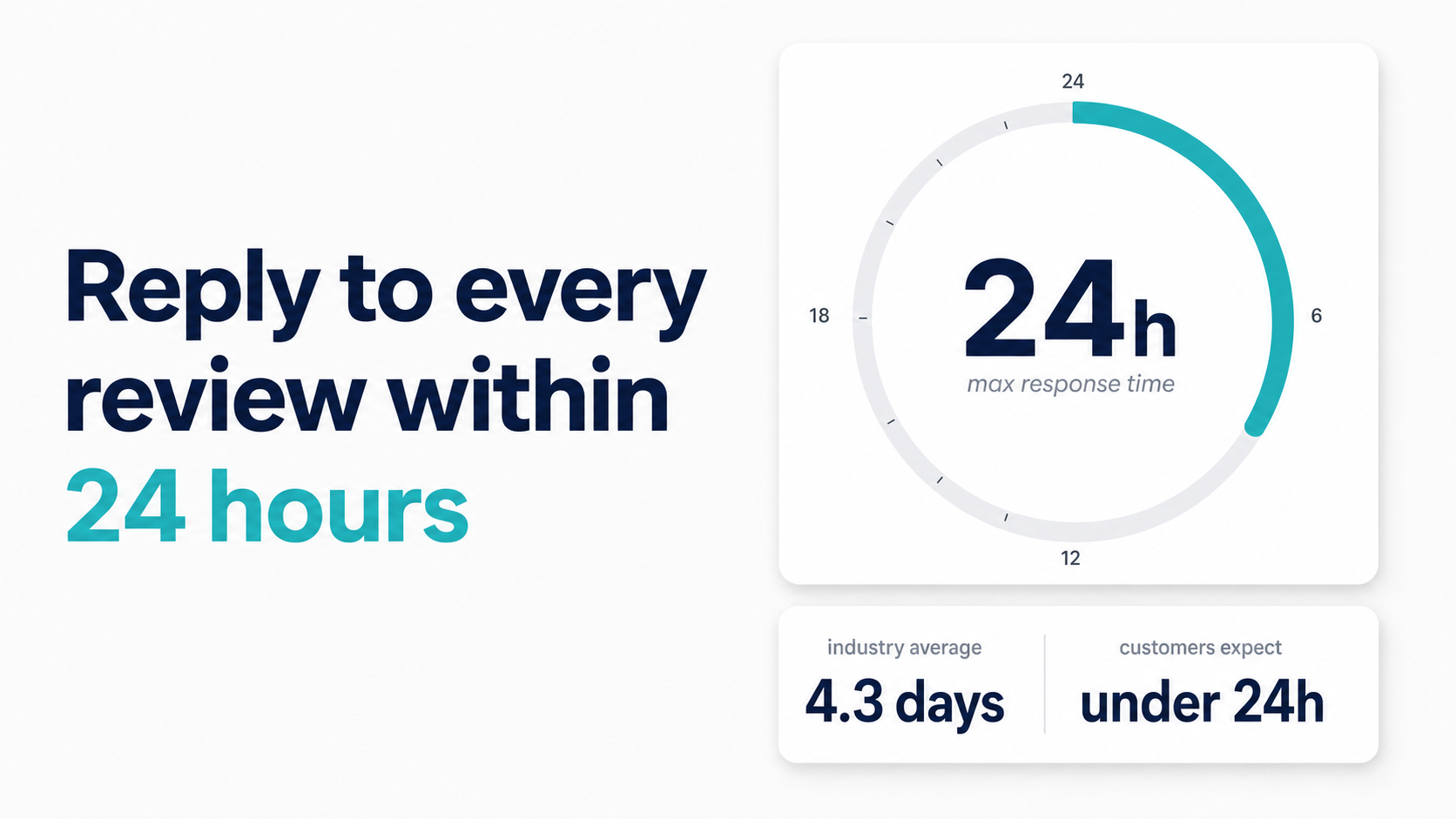
Speed of response matters beyond simply doing the right thing. When prospective customers read through a business's reviews, they're not just reading the reviewer's words — they're reading the owner's responses. An unanswered negative review with no response after several days reads as avoidance. A response posted within 24 hours, even a simple acknowledgment, signals that the business takes feedback seriously.
The underlying dynamic: most customers reading reviews aren't reading them in isolation. They're comparing your response pattern with competitors'. A business with 50 reviews and 48 responses has a different implied reputation than a business with 200 reviews and 3 responses.
At Top Care Cleaning, we aim to respond to every review — positive and negative — within 4 business hours. The fastest we've turned around a negative review response is 11 minutes. That came from catching it through a real-time alert, reading it, drafting a measured response, and posting it while the reviewer was likely still on their phone. TODO[VERIFY] — confirm 11-minute fastest response with Alex before publish.
That 11-minute window is only possible with monitoring in place. Without it, we might not have seen that review until the next morning.
Option 1 — Google Business Profile email alerts (free, built-in)
GBP email notifications are the baseline. Every Google Business Profile account has them, they cost nothing, and they require no third-party tools.
How to enable GBP email notifications
1. Sign into business.google.com with the account that manages your profile.
2. In the left navigation, click Settings (or the gear icon depending on your dashboard version).
3. Scroll to Notifications or Email preferences.
4. Look for Customer reviews — toggle this to enabled if it isn't already.
5. Confirm the email address the notifications are going to. If you use a catch-all email, consider routing review notifications to a folder you check immediately rather than your general inbox.
Limitations of GBP email alerts
Email alerts are reliable but not instant. Google batches some notifications, and the delivery time between a review being posted and the alert arriving in your inbox can range from minutes to a few hours depending on Google's notification schedule.
The bigger risk: email gets buried. If your primary business inbox handles 150 messages a day, a review notification can sit unseen for hours before you notice it. The notification itself doesn't tell you the star rating — you have to click through to see whether it's a 5-star or a 1-star. That single-click friction is enough to delay responses when you're busy.
If your spam filter is aggressive, test by posting a practice review from a different account (then deleting it) to confirm the alert arrives reliably.
Option 2 — Google Maps app notifications (free, mobile)
If you manage your GBP through the Google Maps app on your phone, you can get push notifications for new reviews — which are faster and harder to miss than email.
How to set up push notifications via the Google Maps app
1. Open the Google Maps app on iOS or Android.
2. Tap your profile icon in the top right.
3. Tap Your Business Profile (if the option appears) or search for your business name.
4. On your business listing, tap Notifications in the business management tools.
5. Enable notifications for new reviews.
6. Ensure your phone's notification settings allow alerts from Maps — go to your phone's Settings → Apps → Google Maps → Notifications and confirm they're enabled.
Limitations of Maps app notifications
Behavior varies between iOS and Android. On some Android configurations, Maps push notifications for business updates can be delayed or consolidated into daily summaries rather than real-time pings. iOS tends to deliver them more reliably but depends on the device's background app refresh settings.
The Maps app is also not the primary interface for drafting and posting responses — you'll typically need to tap through to the response form, which adds a step compared to responding directly from a dedicated review management dashboard.
Option 3 — Hosted Reviews dashboard notifications (integrated)
Hosted Reviews combines your review request activity and your review alert in a single dashboard. When a new Google review is posted, the alert appears in the same interface where you manage your outbound review requests — so you're not monitoring two separate systems.
The notification arrives as a dashboard alert and (depending on your settings) an email. Because the same platform tracks your outbound requests, you can cross-reference a new review against your recent sends to identify which customer posted it before you draft your response.
This isn't a neutral comparison — Hosted Reviews is what I built for Top Care's own use, and it's what I recommend for operators who want a more integrated workflow. But the GBP email alerts and Maps notifications are genuinely workable for lower review volumes if you're willing to manage the limitations above.
For the technical details on setting up your review link before you can start monitoring responses to it, see the Google review link generator.
Top Care's monitoring SOP — the 3-step process
The monitoring setup is only half the system. The other half is what happens when the alert fires. Here's the Top Care process:
Step 1 — Alert triggers (belt-and-suspenders)
We use GBP email alerts as the primary channel and the Hosted Reviews dashboard as the secondary. If the email gets filtered or delayed, the dashboard catches it. The redundancy means we've never missed a review notification since setting up both.
Step 2 — Review before you respond (the 1-hour cool-down)
When a negative review comes in, I don't respond immediately. I read it, let it sit for at least an hour, and draft the response once the initial reaction has passed. This isn't about crafting a strategic response — it's about not posting something that sounds defensive or reactive. Prospective customers read the response as much as the review itself.
For 5-star reviews, I respond the same day, usually within the 4-hour window.
Step 3 — Respond within 4 hours if the path is clear; 24 hours max if the situation needs investigation
For negative reviews that reference a specific job or issue, I check with the crew first. If the situation needs internal investigation — what happened, who was on the job, whether the complaint is accurate — I post a brief holding response ("Thank you for letting us know — I'm looking into this and will be in touch") and follow up with the full response once I have the facts.
TODO[REAL_REVIEW] — if a specific Top Care monitoring success story (caught and responded to within an hour) can be used here, swap in pre-publish with disclosure.
Example synthesized from common Top Care scenarios — not a real customer. Patterns reflect Top Care's actual monitoring practice.
Here's the type of situation this SOP is built for: a customer posts a 3-star review at 7:15pm on a Tuesday after a job that day. The alert fires at 7:22pm. The response is drafted and posted by 8:00pm. By the time the reviewer checks back the next morning, there's a thoughtful response waiting. That timing changes how any subsequent prospective customer reads the exchange.
What to do if you missed a review and it's been days
It happens. A review slips through a notification gap, or you see it a week after it was posted. The instinct is sometimes to leave it alone because a late response draws attention to the delay.
That instinct is usually wrong. Responding late is better than not responding. Here's the template approach:
Template — late response acknowledgment:
[Reviewer name], I apologize for the delayed response — I only just saw this. [Address the substance of the review.] We appreciate you taking the time to let us know.
The acknowledgment is brief. Over-explaining the delay makes it the centerpiece of the response; one sentence of acknowledgment, then move directly to the substance.
For the full library of response templates by review type, see the negative review response playbook.
Frequently asked questions
How often does Google send review alert emails?
Google doesn't publish its exact notification schedule. In practice, review alert emails tend to arrive within minutes to a few hours of the review being posted. Batching can delay some notifications. For the most reliable real-time coverage, combine GBP email alerts with Maps app push notifications or a third-party dashboard.
Can I set up review alerts for multiple Google Business profiles?
Yes, but each profile requires separate notification configuration. Log into each profile under business.google.com and enable email alerts for each one individually. Third-party review management tools that support multi-location monitoring are generally more efficient at scale.
What's the best way to monitor reviews if I don't check my email often?
Use the Google Maps app push notification method (Option 2 above) — push notifications on your phone are harder to miss than email. Alternatively, a dedicated review management dashboard like Hosted Reviews delivers alerts to a focused interface separate from your general inbox.
Is there a free tool that sends push notifications for new Google reviews?
The Google Maps app push notification method is free and built directly into Google's ecosystem. It has the limitations described above (variable delivery speed, iOS/Android differences), but it requires no third-party accounts and works reliably for single-location businesses.
Does responding to old reviews still help my SEO?
Yes, though the primary benefit is reputation signal rather than ranking mechanics. Google has indicated that business responsiveness to reviews is a positive signal for the local algorithm. More practically: prospective customers reading older reviews still see your responses and draw conclusions about how you handle feedback. A 14-month-old 1-star review with no response still affects trust even if it no longer affects your average.
Once you've handled the immediate fire, Hosted Reviews helps prevent the next one by routing unhappy customers to private feedback before they hit Google. Start a 14-day trial when the dust settles.
Next steps:
- For the full playbook on handling reviews once you've caught them: How to Respond to Negative Google Reviews
- For building the review velocity that gives each new review less weight: SMS Review Request System
- To set up your review link for monitoring: Google Review Link Generator
About the author
Alex Host runs Top Care Cleaning, a residential cleaning company in Grandville, Michigan with 373 Google reviews and a 4.9-star average built over 45 years of service. He built Hosted Reviews because managing review requests and monitoring responses in separate tools wasn't working at Top Care's pace. He writes about review collection, reputation defense, and local SEO from the operator's chair. More at Hosted Brands.