By Alex Host · Founder of Top Care Cleaning · Updated 2026-07-10
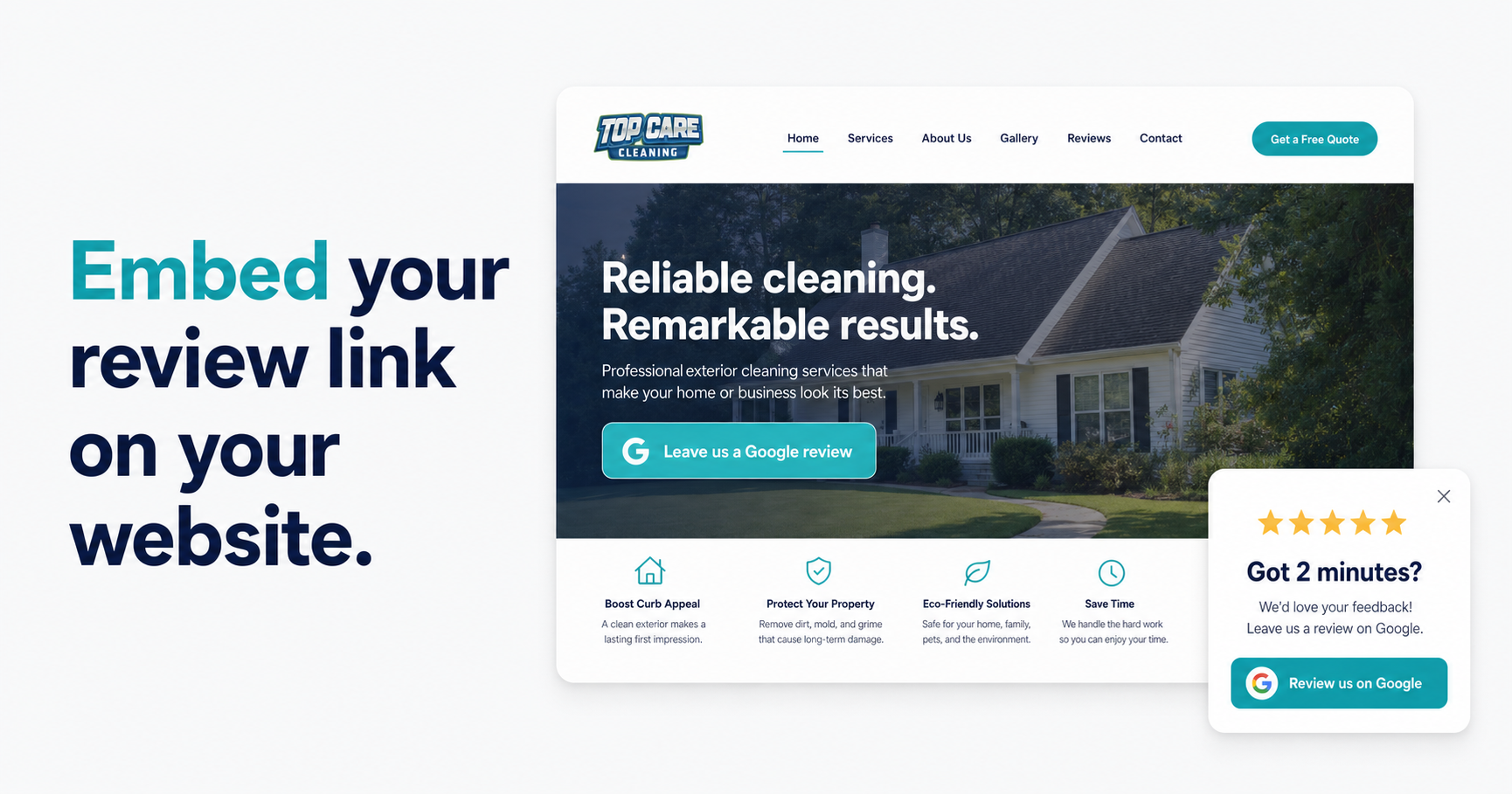
Every service business website should have a "Leave us a Google review" button somewhere. It takes 20 minutes to set up and converts website visitors into reviewers passively, without any ongoing effort. This guide gives you the actual HTML code, the platform-specific steps, and an honest assessment of which options are worth your time.
For the full review link workflow, start with the Google Review Link Toolkit and How to Find Your Google Review Link.
Option 1 — Simple HTML button (the 30-second version)
This is the fastest embed. Copy this snippet, replace YOUR_REVIEW_LINK with your g.page short link or PlaceID URL, and paste it into any page on your website where you can add HTML.
<a href="YOUR_REVIEW_LINK" target="_blank" rel="noopener noreferrer"
   style="display:inline-block; padding:12px 24px; background-color:#4285F4;
          color:#fff; text-decoration:none; border-radius:4px; font-family:sans-serif;
          font-size:16px;">
  Leave us a Google Review
</a>
The target="_blank" attribute opens the review form in a new tab. This is the correct behavior — you don't want to navigate the customer away from your website and end their browsing session.
The rel="noopener noreferrer" attribute is a standard security practice when opening external links in new tabs. It prevents the opened tab from accessing your page's window.opener object. Always include it with any target="_blank" link to an external domain.
Replace the hex color #4285F4 (Google blue) with your brand color if you prefer. The Google blue reads naturally in this context because customers associate it with Google properties, which can reduce hesitation about where the link goes.
Option 2 — Styled CTA section
For a more intentional placement — a dedicated "Review us" section on your About page, service pages, or Thank You page — use this expanded snippet:
<section style="background-color:#f8f9fa; border:1px solid #e0e0e0;
                border-radius:8px; padding:32px; text-align:center;
                max-width:480px; margin:40px auto;">
  <p style="font-family:sans-serif; font-size:18px; font-weight:600;
             color:#202124; margin:0 0 8px;">
    Happy with our work?
  </p>
  <p style="font-family:sans-serif; font-size:15px; color:#5f6368;
             margin:0 0 24px;">
    A quick Google review helps other homeowners find us and means a lot to our team.
  </p>
  <a href="YOUR_REVIEW_LINK" target="_blank" rel="noopener noreferrer"
     style="display:inline-block; padding:12px 28px; background-color:#4285F4;
            color:#fff; text-decoration:none; border-radius:4px; font-family:sans-serif;
            font-size:16px; font-weight:500;">
    Leave a Google Review
  </a>
</section>
This produces a card-style CTA block with a gray background, rounded corners, headline, supporting text, and a button. It works in any HTML context — static sites, WordPress, Squarespace code blocks, Shopify custom sections.
Google branding compliance note: Google's Business Profile Help branding guidance permits using the word "Google" in review request CTAs as long as you're not misrepresenting a Google product or creating brand confusion. A button labeled "Leave a Google Review" is compliant. Using the Google "G" logo image in a custom button requires following Google's separate logo usage guidelines — it's safer to use text-only buttons unless you've reviewed those guidelines.
Option 3 — Footer signature + nav menu placement
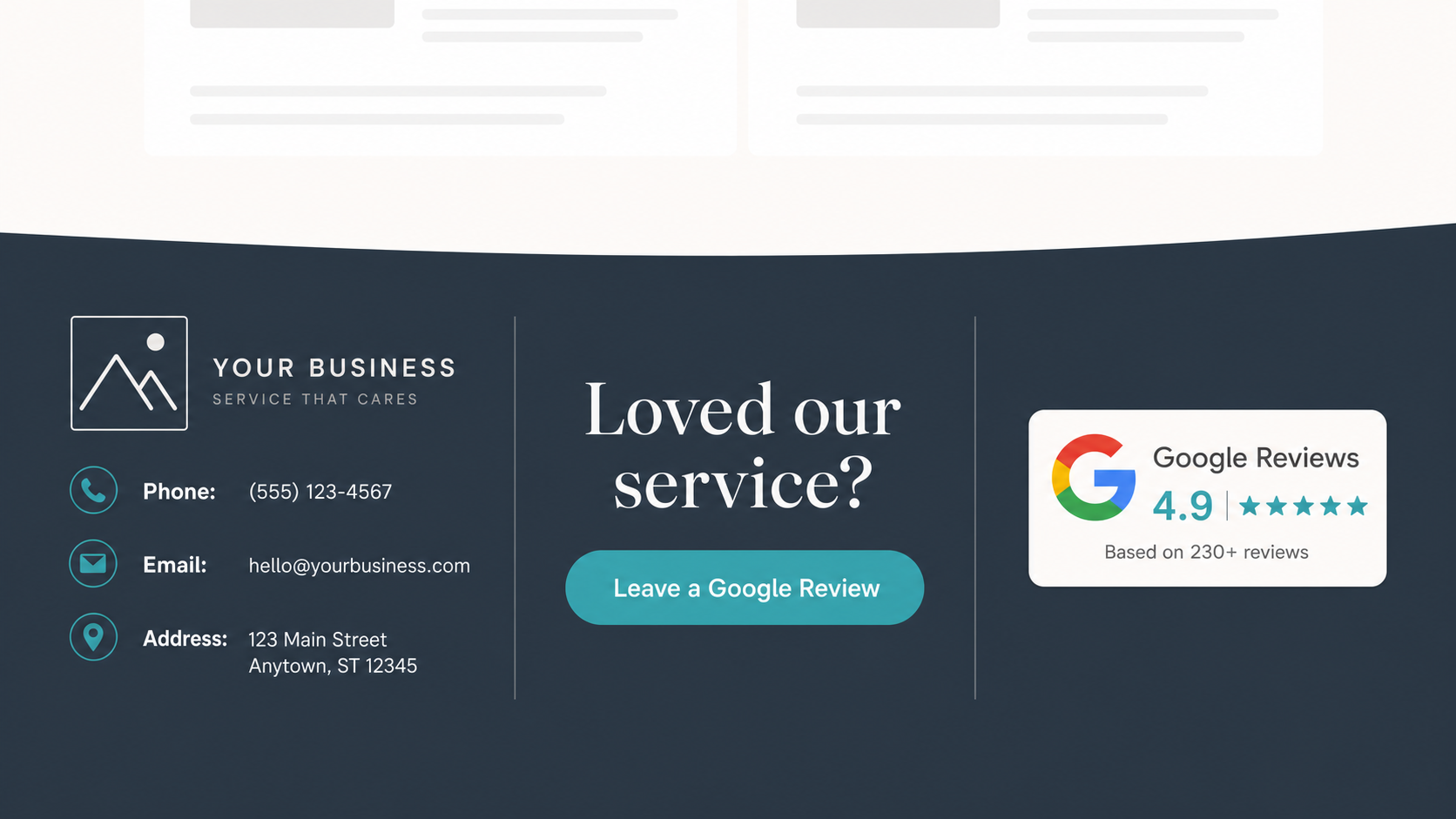
The website footer is the most passive, lowest-maintenance placement. Add your review link to your footer template and it appears on every page of your website without requiring individual page edits.
Simple footer HTML:
<p style="font-family:sans-serif; font-size:14px; color:#5f6368;">
  Happy with our work?
  <a href="YOUR_REVIEW_LINK" target="_blank" rel="noopener noreferrer"
     style="color:#4285F4; text-decoration:underline;">
    Leave us a Google review
  </a>
</p>
Add this to your footer template in your CMS or website builder. It runs from that point forward with zero ongoing maintenance.
Some service businesses also add a "Reviews" link in their top navigation menu. This works when you have a dedicated /reviews or /leave-a-review page that hosts the review button alongside existing testimonials or star rating displays. Navigation placement is visible on every page, but it can feel premature if a visitor is browsing your services and hasn't hired you yet.
The footer placement is less prominent but more contextually appropriate — it's seen by visitors who've already spent time on your website, which correlates with higher intent.
Option 4 — Popup / exit-intent
Exit-intent popups trigger when the browser detects the user is about to leave the page (usually detected by the cursor moving toward the browser's close button or address bar on desktop).
Technically, they can be configured to show a review CTA instead of an email capture form.
Honest take: this is usually overkill for a service business website. Popups interrupt the browsing experience and feel aggressive in a context where the customer is browsing your services — not actively trying to leave you a review. The customers who want to review you will find the button or footer link; the customers who don't want to review you won't convert from a popup.
Where popups can work: On a "Thank you" confirmation page after a customer submits a booking form or quote request. At that moment, they're actively engaged with your business, they've just taken an action, and a "If you've worked with us before, we'd love a review" popup is contextually appropriate without being intrusive.
Option 5 — WordPress, Shopify, Squarespace, Wix specific
WordPress: Paste the HTML button snippet into a Custom HTML block in the Gutenberg block editor on any page or post. For the footer, add it via Appearance → Widgets, using a Custom HTML widget in the footer sidebar or footer block area. Works in any standard WordPress theme.
Squarespace: Use a Code Block (available on Business plan and higher) and paste the HTML snippet. To add to the footer sitewide, go to Pages → Footer → Edit Footer and add a Code Block there. The Code Block renders inline HTML correctly.
Shopify: Add the snippet to a page using the "Show HTML" toggle in the page editor, or edit a section in the Shopify Theme Editor for more precise placement. For footer placement, edit the footer.liquid template in the theme code (Themes → Edit Code → Sections → footer.liquid). The snippet renders correctly in Shopify's Liquid template engine.
Wix: Use the Wix HTML widget (Add → More → HTML) and paste the snippet. Wix renders HTML widgets in an iframe, which can affect styling — the outer section's background and border may not match your site styles exactly. Test after adding and adjust the inline CSS if needed.
Webflow: Add an HTML Embed element from the element library. Paste the snippet. Webflow's embed renders the HTML directly without iframe wrapping, so styling is consistent with your site's CSS.
For any other platform: if it accepts custom HTML embeds, the snippet works. The target="_blank" and rel="noopener noreferrer" attributes ensure correct behavior regardless of platform.
Should the button open a new tab?
Yes. Always use target="_blank".
When the customer clicks the review button, they're leaving your website and going to Google. If the link opens in the same tab, your website session ends and the customer has to navigate back separately. Some customers won't bother, and the browsing session — with any in-progress quote or inquiry — is lost.
Opening in a new tab keeps your website available in the background when the customer returns from the review form.
The rel="noopener noreferrer" attribute prevents the opened Google page from accessing your page's JavaScript window object. This is a minor security hygiene practice that's now standard for any external link opened with target="_blank".
How to test that your embedded button is working correctly
Before considering the embed done, run through this quick verification checklist:
1. Click the button in an incognito browser window. Confirm it opens your Google review form — not a listing page, not a 404, not someone else's business. The business name at the top of the review form should exactly match your GBP listing name.
2. Confirm it opens in a new tab. The target="_blank" attribute should prevent your website from navigating away. If your site's page disappears when clicking the button, the attribute is missing or being overridden by a site-wide link handler.
3. Test on mobile. On an iPhone or Android, tap the button. Confirm the review form loads correctly. On some mobile devices, the g.page link may redirect through the Google Maps app rather than a browser — this is normal behavior and the customer still lands on the review form.
4. Test with a logged-in Google account. The review form displays differently depending on whether the customer is signed into Google. Signed-in users see the star rating form immediately. Signed-out users see a sign-in prompt first. You can't change this — it's Google's authentication requirement — but knowing it exists lets you address it in your CTA copy if needed.
5. Add a quarterly calendar reminder to re-test the link. The g.page short link underlying your button can break if your GBP listing is suspended, merged, or updated. A quarterly check takes 30 seconds and prevents a broken button from silently failing for months.
Branding rules from Google
Per Google's review request guidelines:
- You can use the words "Google review" and link to the official review form.
- You cannot use Google's logo image in your button unless you follow Google's separate brand guidelines for logo usage.
- You cannot use "powered by Google" or similar phrasing that implies affiliation or endorsement.
- You cannot gate the review — the link must open Google's standard, unmodified review form. Creating a custom form that pre-screens reviews before letting customers post is prohibited.
The HTML snippets in this guide use Google's brand color optionally (the blue #4285F4) and Google's product name in CTA text — both are compliant. They do not use the logo image.
If you're looking to display existing Google reviews on your website (not just collect new ones), that's a separate technical task involving either the Google Places API or a reviews widget plugin. The embed in this guide only links out to the review form.
For guidance on which link format to use inside your embedded buttons, Google Maps Review Link vs Google Business Profile Link covers the conversion difference between formats.
Want to send this link automatically over SMS after every job?
I built Hosted Reviews because I was sick of manually texting review requests after every Top Care job. Start a 14-day trial — no card required.
About the author
Alex Host runs Top Care Cleaning, a residential cleaning company in Grand Rapids, Michigan, and built Hosted Reviews after years of duct-taping review-request systems together. He writes about review collection, local SEO, and operating service businesses.