By Alex Host · Founder of Top Care Cleaning · Updated 2026-05-04
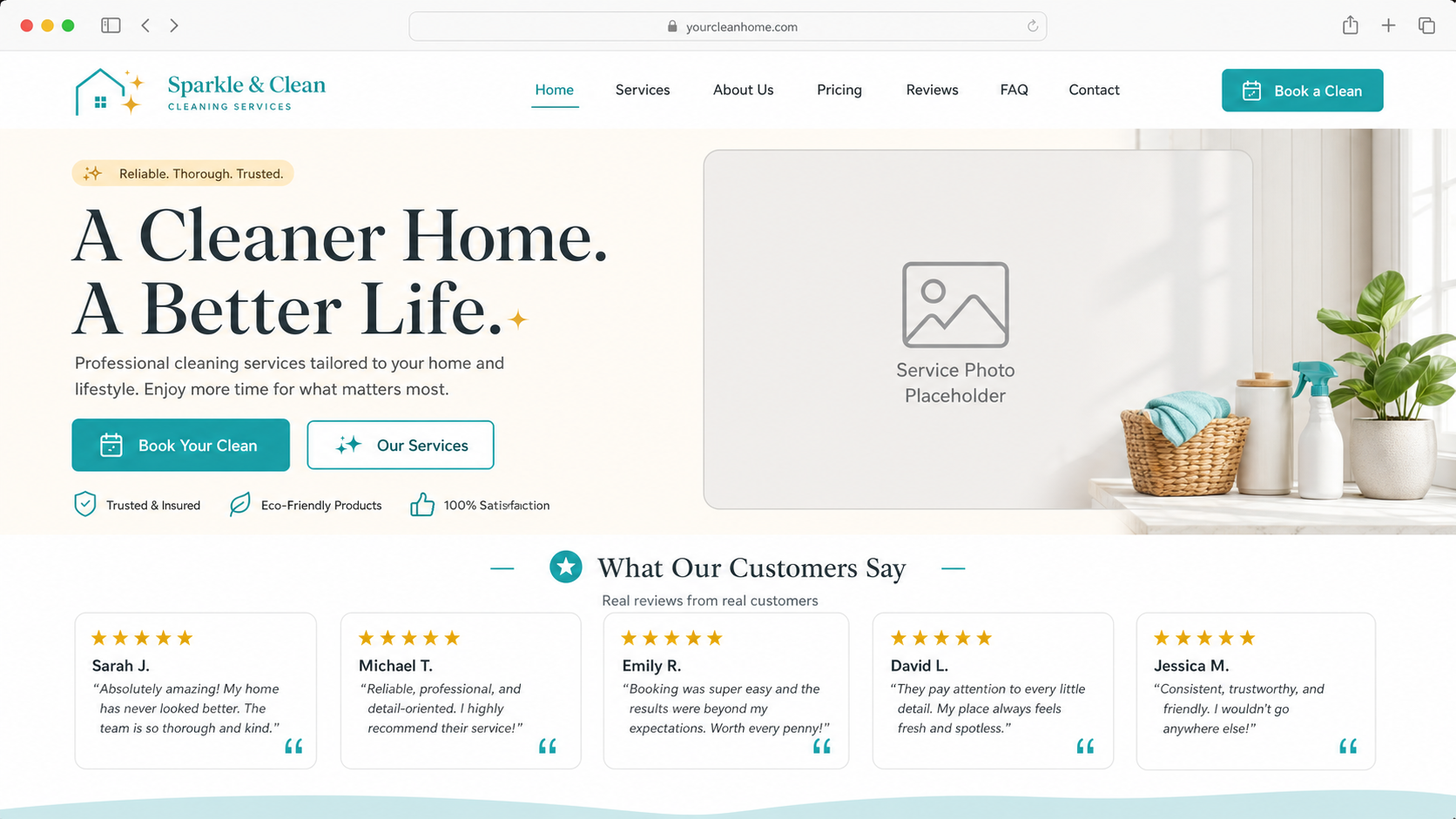
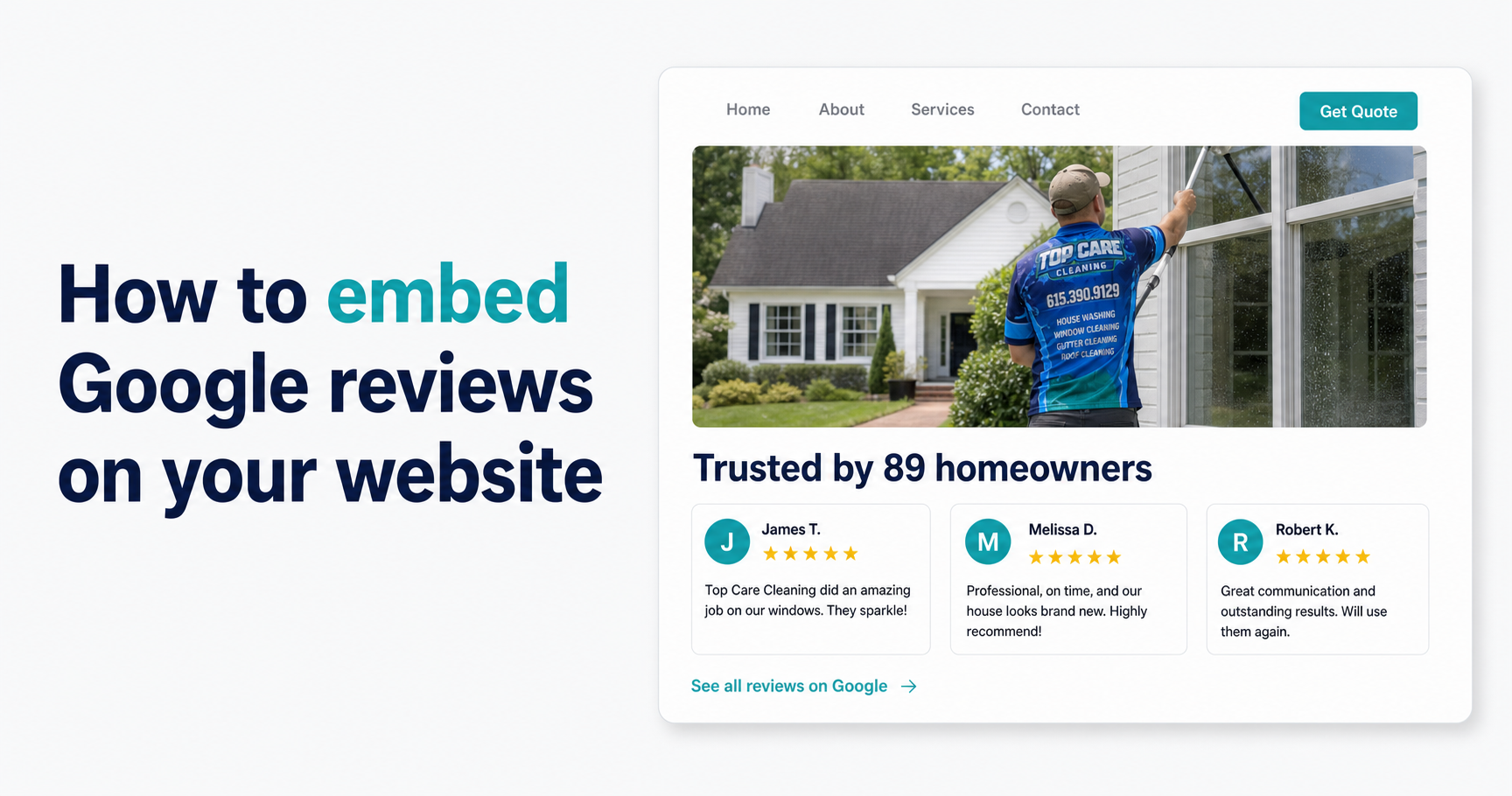
To display your Google reviews on your website, you need a widget plugin or embed code that pulls from your Google Business Profile. The fastest free option on WordPress is a plugin like "Widget for Google Reviews." On Wix, Squarespace, Shopify, and Elementor, third-party widgets (Elfsight, Tagembed, or the Hosted Reviews native widget) handle this with a copy-paste code block.
Why embedding your reviews matters for local service bookings
When a prospect finds your website through a Google search or referral, they've already done the first step of vetting you. The website visit is where they decide whether to call. At this stage, your Google reviews — visible on the page they're already reading — eliminate the step of leaving your site to check your profile.
When I first added the review widget to the Top Care Cleaning site, job inquiry-to-booking rate improved at the quote stage. Customers would arrive on the estimate call having already seen the 400-star profile. The comparison question — "who else should I get a quote from?" — came up less often. The reviews did the qualifying before the call began.
The embedded widget does two things. First, it keeps prospects on your site instead of bouncing to Google to check your reviews (and potentially clicking a competitor's listing). Second, it adds review content to the page, which supports the schema markup that can produce star ratings in your search results (covered in Review Schema and Rich Snippets for Your Service Website).
This article covers display widgets that show your star rating and review text on your site. For sharing your Google review link directly — the URL that customers click to leave a review — see The Google Review Link Toolkit and How to Share Your Google Review Link.
Option 1 — WordPress (most common)
WordPress powers roughly 43% of all websites, and the plugin ecosystem for Google reviews is mature. You have a free option and a paid option, with meaningfully different tradeoffs.
Free method — Widget for Google Reviews plugin
"Widget for Google Reviews" (by Trustindex, available in the WordPress plugin directory) is the most widely used free option. It connects to your Google Business Profile via the Google Places API and displays your reviews in configurable layouts.
Step 1: In your WordPress dashboard, go to Plugins → Add New and search for "Widget for Google Reviews."
Step 2: Install and activate the plugin.
Step 3: In the plugin settings, you'll be prompted to connect your Google account and select your business location from your GBP.
Step 4: Configure the display settings — layout (grid, list, slider), minimum star rating to show, number of reviews to display.
Step 5: Place the widget using the block editor widget, a shortcode, or a sidebar widget in any theme that supports widget areas.
Limitations: The free tier typically limits the number of reviews displayed and refresh frequency. Some free Google review widgets require you to generate a Google Places API key (available through Google Cloud Console at no charge for modest request volumes). The API key requirement adds a setup step that frustrates non-technical operators.
Hosted Reviews widget (native, no API key)
Hosted Reviews customers get a native embed widget that updates automatically and requires no API key setup. The widget pulls your latest reviews from the Hosted Reviews platform and displays them in a format you control.
The advantage over free plugins: no API key, no Google Cloud Console setup, automatic refresh when new reviews come in, and the same platform that's sending your review requests is also displaying the results. See the product demo at app.hostedreviews.com.
Option 2 — Wix
Wix has a native Google Reviews widget available through the Wix App Market, which simplifies the setup compared to platforms that require third-party code.
Step 1: In your Wix editor, click the "+" (Add Elements) button.
Step 2: Navigate to App Market and search for "Google Reviews" or "Reviews."
Step 3: Install the Wix Google Reviews app. Wix will prompt you to connect your Google Business Profile.
Step 4: Authenticate with the Google account that manages your GBP and select your business location.
Step 5: Drag the widget to the desired position on your page and configure the layout in the widget settings panel.
Wix's native implementation handles refresh automatically. The widget updates as new reviews come in without any manual action from you. For businesses using Wix as their primary site platform, this is the lowest-friction path.
Option 3 — Squarespace
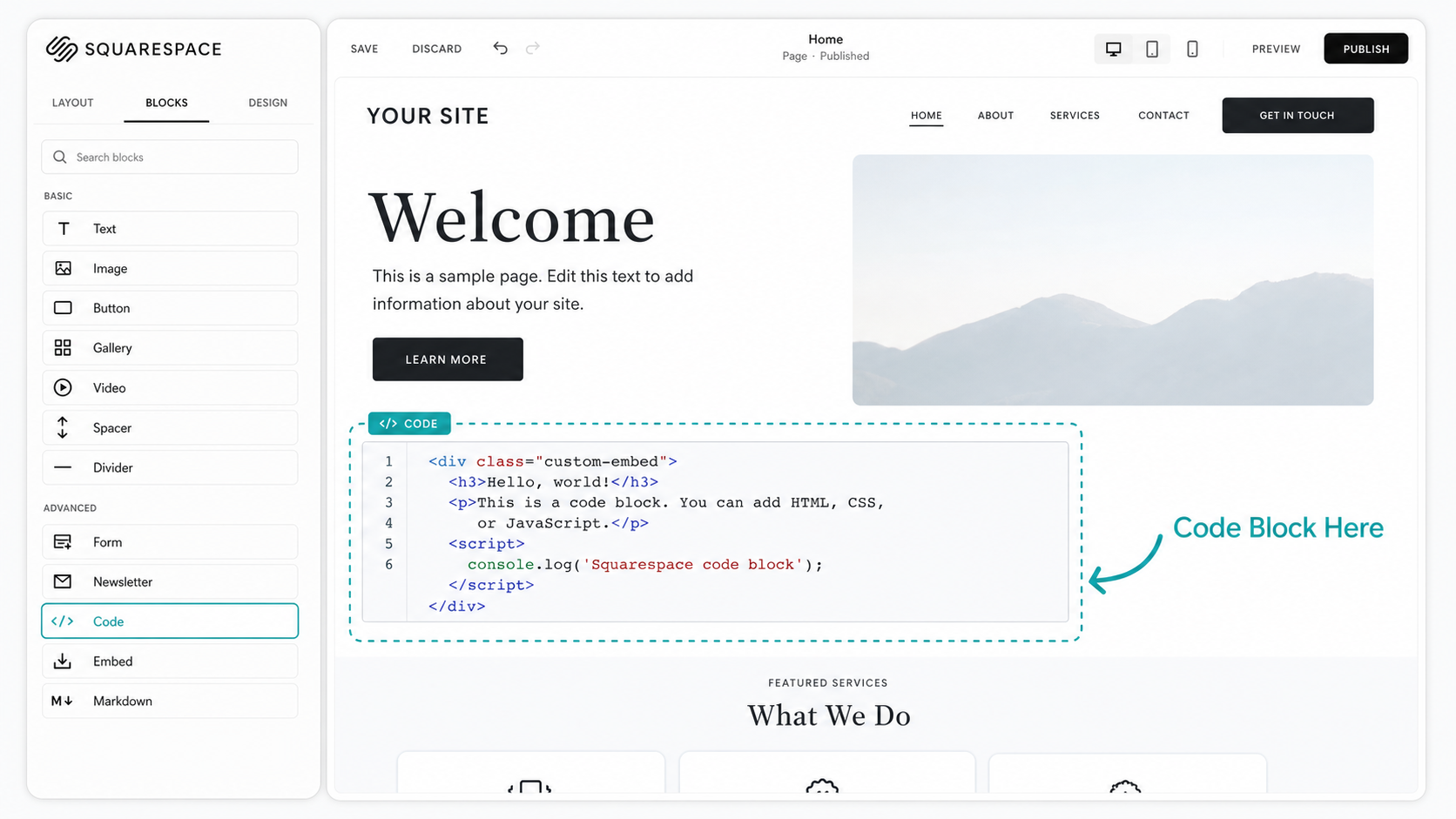
Squarespace does not have a native Google reviews app as of 2026. The embed path requires a third-party service (Elfsight or Tagembed are the most widely used) and uses Squarespace's code block to insert the widget.
Step 1: Create an account at Elfsight or Tagembed and set up a Google Reviews widget. Connect your GBP, configure the layout, and get the embed code.
Step 2: In your Squarespace editor, navigate to the page where you want the reviews to appear.
Step 3: Add a new block and select "Code" from the block types.
Step 4: Paste the embed code from Elfsight or Tagembed into the code block.
Step 5: Preview the page to confirm the widget renders correctly and the reviews are displaying.
The Elfsight and Tagembed free tiers have display limitations. Paid plans start at around $9–$12/month and remove branding and review count restrictions.
Option 4 — Shopify
Shopify's App Store has several Google Reviews apps. The most commonly used are "Trustpilot Reviews" (for businesses that use Trustpilot), "Google Reviews Widget" by various developers, and Elfsight's Shopify app.
A note on relevance: Shopify is primarily an e-commerce platform, and Google Reviews widgets on Shopify are most useful for service-adjacent product businesses — cleaning supply stores, equipment dealers, pool and spa supply shops. For pure service businesses (residential cleaning, exterior services) using Shopify as a website platform rather than for e-commerce, the review widget setup works the same way.
Step 1: Go to your Shopify admin and click Apps → Explore apps.
Step 2: Search for "Google Reviews" and select a widget app.
Step 3: Follow the app's installation flow — typically connecting to your GBP via OAuth.
Step 4: Configure the display settings and place the widget block in your theme using the theme editor.
Option 5 — Elementor
Elementor Pro includes a Google Reviews widget natively. Free Elementor users need a plugin.
For Elementor Pro:
Step 1: In the Elementor editor, search for "Google Reviews" in the widget panel.
Step 2: Drag the widget to your page.
Step 3: In the widget settings, enter your Google API key (required for Elementor Pro's native widget) and select your business location.
Step 4: Configure the layout, star filter, and review count.
For free Elementor:
Install a compatible Google Reviews plugin (such as Widgets for Google Reviews or WP Google Review Slider) from the WordPress plugin directory. These plugins add Elementor-compatible blocks that appear in the widget panel.
What makes a good Google review widget? (Buyer's checklist)
Before choosing a widget, evaluate it on these six criteria:
Auto-refresh rate. How frequently does the widget pull new reviews? Some free widgets only refresh every 24 hours; others are near real-time. If you're actively collecting reviews, you want your site to reflect new reviews without manual intervention.
Star filter. Can you set a minimum star rating threshold? Most widgets allow you to show only 4-star and 5-star reviews. Note that Google's terms require accurate representation of your review profile — check the specific policy if you're considering aggressive filtering.
Styling options. Does the widget match your site's visual design? Grid, list, slider, and masonry layouts are common. Custom color and font options vary significantly between free and paid tiers.
Mobile responsiveness. The widget must work on mobile — a significant portion of visitors to service business websites are on phones. Test on both iOS and Android before going live.
API key requirement. Some widgets require you to set up a Google Places API key through Google Cloud Console. This adds a non-trivial setup step for operators without technical backgrounds. Widgets that handle authentication through their own platform (Elfsight, Tagembed, Hosted Reviews) reduce this friction.
Hosted Reviews widget vs third-party. The Hosted Reviews native widget is the embedded counterpart to the review request system. It auto-refreshes, requires no API key, and keeps your display in sync with your collection. Third-party widgets like Elfsight and Tagembed are solid options for operators who are not Hosted Reviews customers and want a standalone display solution.
Frequently asked questions
Does embedding Google reviews on my website help my SEO?
Indirectly. Embedding reviews adds user-generated content to your pages and supports the schema markup that can produce star ratings in search results. The widget itself doesn't pass direct ranking signals, but the AggregateRating schema paired with the embedded content can increase click-through rates from positions you already hold. For the technical schema setup, see Review Schema and Rich Snippets for Your Service Website.
Can I filter out negative reviews in the widget?
Technically yes — most widgets allow you to set a minimum star threshold. Google's terms of service require that review displays be accurate and not misleading. Filtering out all 1-star and 2-star reviews while claiming "see all our reviews" is a gray area. Showing only 4-star+ reviews in a labeled display ("our recent top reviews") is generally considered acceptable, but read the widget provider's terms and Google's review display policies before implementing aggressive filtering.
Does the widget update automatically when I get new reviews?
It depends on the widget and plan. Most free plugins have a 1–24 hour refresh lag. Paid plans and native integrations like Hosted Reviews typically refresh within minutes of new review arrival. For service businesses actively collecting reviews, the refresh rate matters — a week-old lag in a high-velocity period means your most recent social proof isn't showing.
Can I embed reviews from Yelp or Facebook in the same widget?
Some third-party widgets (Elfsight, Tagembed, EmbedSocial) support multi-platform display and can pull Google, Yelp, and Facebook reviews into a single widget. Hosted Reviews is focused on Google review collection and display. If you want a unified multi-platform display, Elfsight is the most capable option in this category.
Closing
Hosted Reviews customers get a native embed widget that auto-refreshes and requires no API key setup. Start a 14-day trial — no card required: app.hostedreviews.com.
About the author
Alex Host runs Top Care Cleaning, a Grand Rapids cleaning and exterior service with 400+ Google reviews, and built Hosted Reviews to automate what he was doing manually. I run Top Care Cleaning, a Grand Rapids cleaning and exterior service with 400+ Google reviews, and I built Hosted Reviews to automate what I was doing manually. Read more at hostedbrands.com/about and topcarecleaning.com.